
Release date: 5/6/2026
Overview
Manager View Custom Printing Enhancements give your team more control and flexibility over printing proposals in Deal Central—so you can create dealership-specific proposals that align with how deals are presented in real conversations.
This release includes three updates to printing proposals in Manager View:
- Customizable disclaimer text for printing proposals
- Adjustable font size for printing proposals
- A new 4-square worksheet template option for printing proposals
What’s New
Dealership-specific disclaimers
- Replace the default generic disclaimer with custom text when printing a proposal (available for Finance, Lease, Cash, Flex Buy and Balloon deals).
- Dealers also have the option to insert the current date within custom text.
Adjustable text sizing
- Adjust all fonts for printed PDFs by +2 / -2 points from default sizes using a new text size setting, which can be shared to Sales View through the primary template.
A 4-square print proposal option
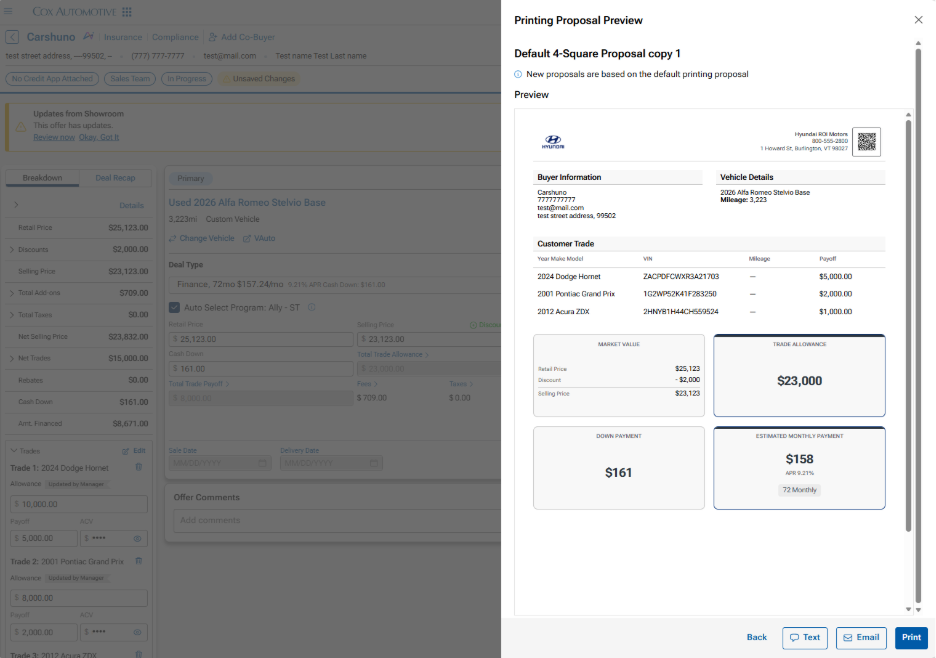
- A new Default 4-Square Proposal template layout is available for printing the primary scenario (not available for Flex Buy or Balloon scenarios). This template includes a four-quadrant grid layout:
- Top Left: Market Value
- Top Right: Trade Allowance
- Bottom Left: Down Payment
- Bottom Right: Estimated Monthly Payment (Finance or Lease) or Total Purchase Amount (Estimated Total Purchase Amount for Cash)
- Dealers can copy the default to create a customizable version, where field visibility and other display rules can be controlled.
4-Square Proposal Template Example
How It Works (Step by Step)
Manager View – Customizable Disclaimer for Printing Proposals
Add a Customized Disclaimer on proposals — To update a proposal with your dealership’s disclaimer:
- Create or open a printing proposal.
- On the Display tab, find and select the Customized Disclaimer checkbox (the default is off).
- Once enabled, a text area opens.
- Enter the disclaimer text (the field cannot be empty; 550-character limit).
- Optional: Insert {date} to pull the current date into the disclaimer.
For multi-scenarios deals
- Create a multi-scenario deal
- Go to Print
- Select the Printing Proposal with the enabled Customized Disclaimer
- The same disclaimer will apply across Finance, Lease, Cash and Balloon deals scenarios.
Manager View – Font Size Adjustment Setting for Default Printing Proposal
Adjust text sizes on proposals — to change the font size before printing:
- Select the three dots menu next to the Print button.
- Select Print Settings, then select the needed proposal and open the Display tab.
- Click Text Size and choose a dropdown option (up to +2 / -2 points from default).
- Click Save and Preview to review the change in Preview.
- Click Print to generate the PDF with the adjusted font size.
Manager View – 4-square printing template
Create a 4-Square Print Proposal from the Templates List
- Select the three dots menu next to the Print button.
- Select Printing Settings to view the list of Printing Proposals.
- Find Default 4-Square Proposal and click the name to preview default settings (Note: The default template is not editable and can’t be removed).
Customize a 4-Square Print Proposal
- To customize, open the three dots menu next to the default and select Copy Proposal. A new customizable copy is created with the default name.
- Customize your copied version using General and Display tabs (for example: field visibility and display rules).
- Preview the result in the Preview step.
- If needed, delete a created copy using Remove Proposal (default template cannot be deleted).