
Released: 8.18.2026
Overview
Managers can now choose which deal items carry over when changing a vehicle in Deal Central Manager View. A new confirmation step allows managers to review and keep or remove eligible deal items before completing the vehicle switch, providing greater control over how deal information is retained.
Previously, manually added deal items were removed during a vehicle change and had to be re-entered after the switch.
What’s New?
Choose which deal items carry over
Managers can now choose whether to keep or remove when switching vehicles:
- Rebates and incentives
- Vehicle protection products
- Accessories
- Manually overridden tax percentages (when applicable)
Use bulk selection options
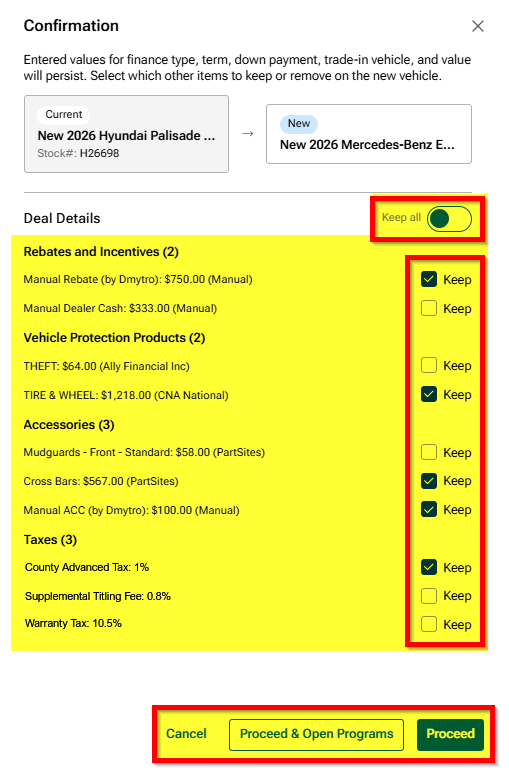
Managers can quickly choose to keep all eligible items or remove all eligible items with a single action.
Review items before completing a vehicle switch.
Review each eligible item and decide whether it should carry over to the replacement vehicle.
Skip the extra step when no items exist
If a deal does not contain eligible deal items, the confirmation window is automatically skipped and the vehicle switch proceeds as normal.
How It Works
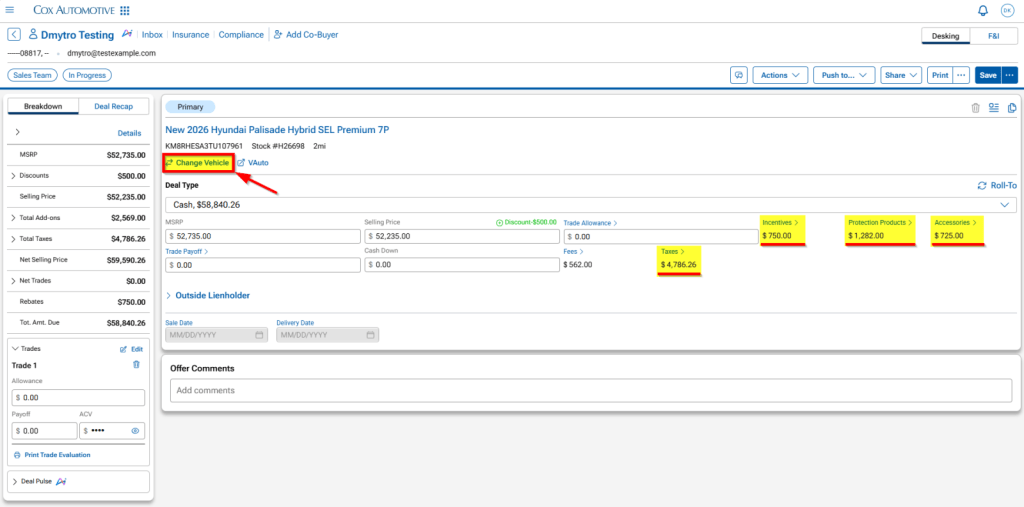
Step 1: Start a vehicle change
Open a deal in Manager View and select Change Vehicle.
Step 2: Select the replacement vehicle
Choose the vehicle that will replace the current vehicle on the deal.
Step 3: Review and select deal items
Before the vehicle switch is completed, a confirmation window appears showing eligible deal items grouped by category. These categories may include:
- Rebates & Incentives
- Vehicle Protection Products
- Accessories
- Taxes with manually overridden percentage values
Choose which items should carry over to the replacement vehicle. Keep or remove items individually, or use bulk selection controls to keep all or remove all.
Step 4: Complete the vehicle switch
Confirm the vehicle change to update the deal.
The deal recalculates automatically, and only the selected items remain attached to the deal.
Availability & Important Notes
- This enhancement applies to Manager View only.
- If no eligible items exist on the deal, the confirmation step is automatically skipped.
- Fees and system-calculated taxes continue to recalculate automatically after the vehicle switch.
- Trade-in information continues to be preserved.